Smart Gems from the Mac World!
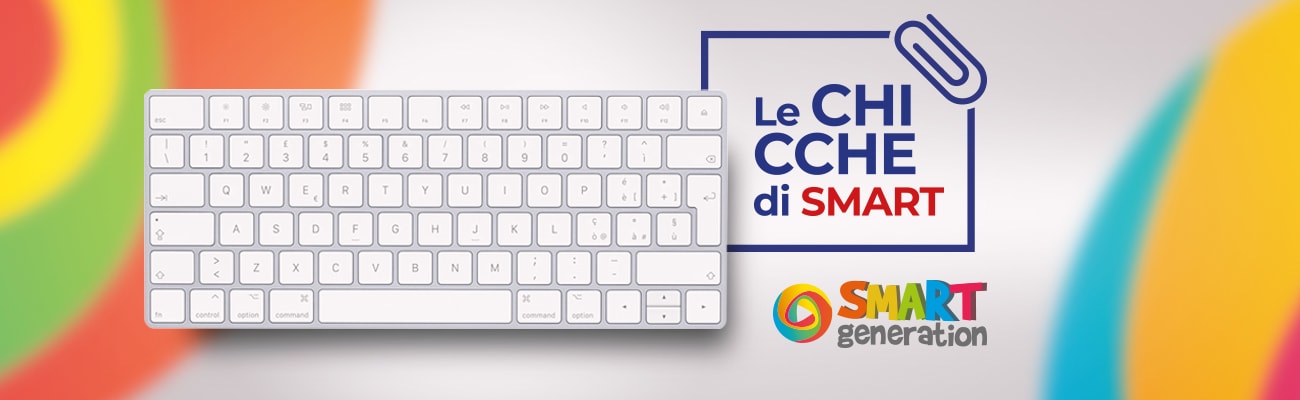
Let's start with the basics, then move on to the tricks: To the right and left of the space bar is the cmd (Command) key, identified by the ⌘ symbol.
On some older keyboards you can still find the symbol of the .
Mirroring each other, the alt (option) keys with the ⌥ symbol.
To the left of alt, the ctrl key.
Also on the left of the keyboard, the tab key, whose symbol is a horizontal arrow followed by a vertical bar.
There are two Shift keys, one on the left and one on the right, with a large upward-pointing arrow as their symbol ⇧ .
At the top right is the Eject key.
Finally, on the right side of the keyboard, Delete, shown with a left-pointing arrow.
Shortcuts: keyboard shortcuts
This simple guide will help you discover the main and most useful keyboard shortcuts to speed up your work, interact with your computer faster and make the most of the operating system's potential.Let's start with the basics, then move on to the tricks: To the right and left of the space bar is the cmd (Command) key, identified by the ⌘ symbol.
On some older keyboards you can still find the symbol of the .
Mirroring each other, the alt (option) keys with the ⌥ symbol.
To the left of alt, the ctrl key.
Also on the left of the keyboard, the tab key, whose symbol is a horizontal arrow followed by a vertical bar.
There are two Shift keys, one on the left and one on the right, with a large upward-pointing arrow as their symbol ⇧ .
At the top right is the Eject key.
Finally, on the right side of the keyboard, Delete, shown with a left-pointing arrow.
Now that we know the main keys, let's learn the tricks and keyboard shortcuts:
- cmd + X cut, cmd + C copy, cmd + V paste;
- Undo the last action: cmd + Z.
- Delete a file: cmd + Delete
- Hide a window you are viewing: cmd + H, to reopen the window click on the application icon
- Quick Spotlight search: cmd + Space bar
- Finder search: Alt + cmd + space bar
- Cycle through open programs: hold down cmd and press Tab to cycle, release on the program you want to view to bring it to the front.
- Make all open windows disappear to see the desktop: cmd + F3, repeat to bring all windows back to where they were.
- Closes all windows: cmd + alt + M
- Empty the bin discreetly, without a confirmation message: cmd + Shift + Delete
- Screenshot of the screen: cmd + Shift + 3 (the image will be saved on the desktop)
- Screenshot of just an area of the screen: Cmd + Shift + 4 (select with the mouse the area to capture, release to take it)
- Open link in another tab: cmd + click on the link
- Turn on the Mac discreetly without sounds: F10 + power button
- Add emoji to a text: cmd + ctrl + space
- Turn off the Mac screen: ctrl + Shift + Eject
- Open the shut down, restart and standby menu: ctrl + Eject
- Forced restart: ctrl + cmd + Eject
- Start the shut down procedure: ctrl + alt + cmd + Eject
- Switch user: cmd + Shift + Q
- Log out of an account without a confirmation request: cmd + Shift + alt + Q
- Open the Applications window: cmd + Shift + A
- Open Utilities: cmd + Shift + U
- Open a documents folder: cmd + Shift + D
- Open the dictionary, select the word and press: cmd + ctrl + D (a box will open with the meaning of that word)
- Force quit a frozen application: cmd + Shift + alt + Esc