How to reinstall macOS from macOS Recovery
Learn how to use macOS Recovery to reinstall the Mac operating system on the built-in drive or on an external drive.
Reinstall from macOS Recovery
macOS Recovery makes it easy to reinstall the Mac operating system, even when you first need to erase the startup disk. All you need is an internet connection. If a wireless network is available, you can choose it from the Wi-Fi menu  in the menu bar. This menu is also available in macOS Recovery.
1. Start up from macOS Recovery
To start up from macOS Recovery, turn on your Mac and immediately press and hold one of the following key combinations. Command-R is generally recommended, especially if you have never installed macOS Sierra 10.12.4 or later.
Option 1 —-> Command (⌘) + the R key
Installs the latest version of macOS that was installed on your Mac.
Option 2 —-> Option (Alt) + Command (⌘) + the R key
Upgrades to the latest version of macOS compatible with your Mac.
Option 3 —-> Shift + Option (Alt) + Command (⌘) + the R key
Installs the version of macOS that came with your Mac, or the closest version still available.
Release the keys when you see the Apple logo, a spinning globe or a prompt for a firmware password. When the Utilities window appears, you have completed startup from macOS Recovery.
2. Decide whether to erase (format) the disk
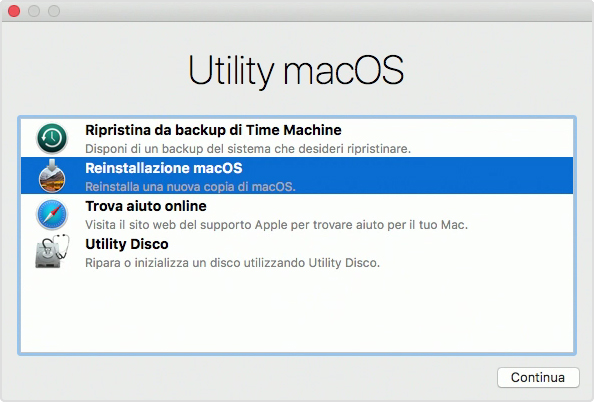
If you need to erase the disk before installing macOS, select Disk Utility from the Utilities window, then click Continue. You probably won't need to erase, unless you're selling or giving away your Mac or have a problem that requires erasing. Learn more about when and how to erase.
3. Install macOS
After starting up from macOS Recovery, follow these steps to install macOS:
- Choose Reinstall macOS (or Reinstall OS X) from the Utilities window.
- Click Continue, then follow the onscreen instructions to choose your disk and begin installation.
If the installer asks to unlock your disk, enter the password you use to log in to your Mac. If the disk isn't detected or a message says that it can't install on your computer or volume, you might need to erase your disk.
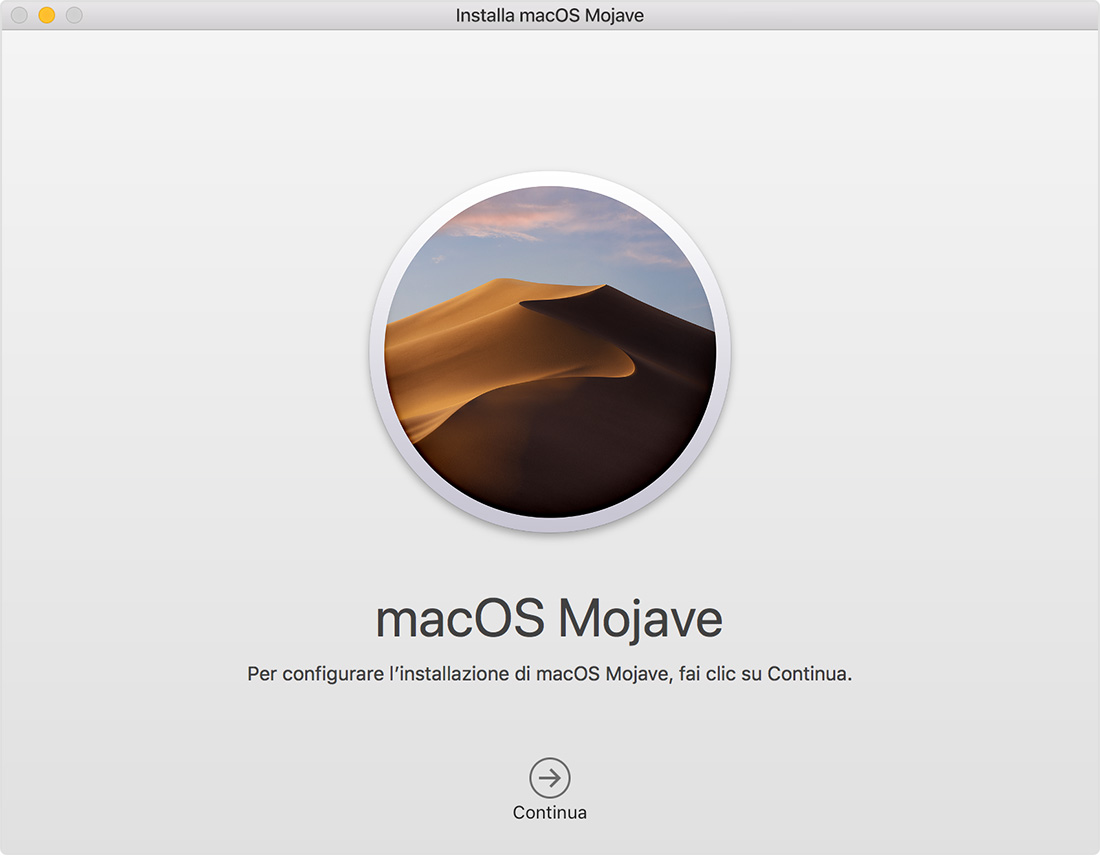
- To allow installation to complete, don't put your Mac to sleep or close its lid. During installation, your Mac might restart and show a progress bar several times, and the screen might be empty for minutes at a time.
If the setup assistant appears on restart but you're selling or giving away your Mac, press Command-Q to quit Setup Assistant without completing setup. Then click Shut Down. When the new owner starts up the Mac, they can use their own information to complete setup.